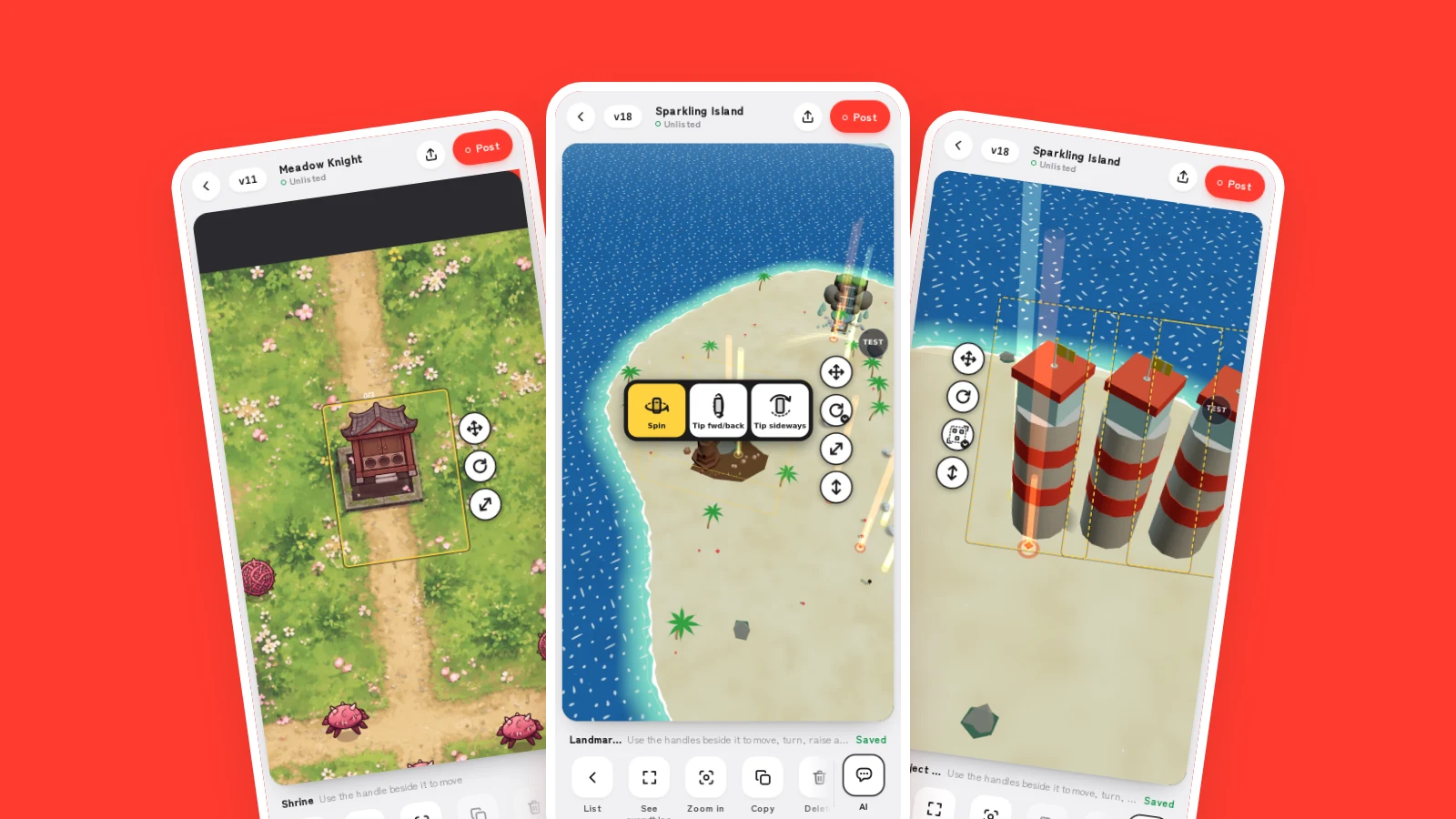
Position, size and rotation.
Pick something in your game and drag the buttons that appear beside it.
- 01
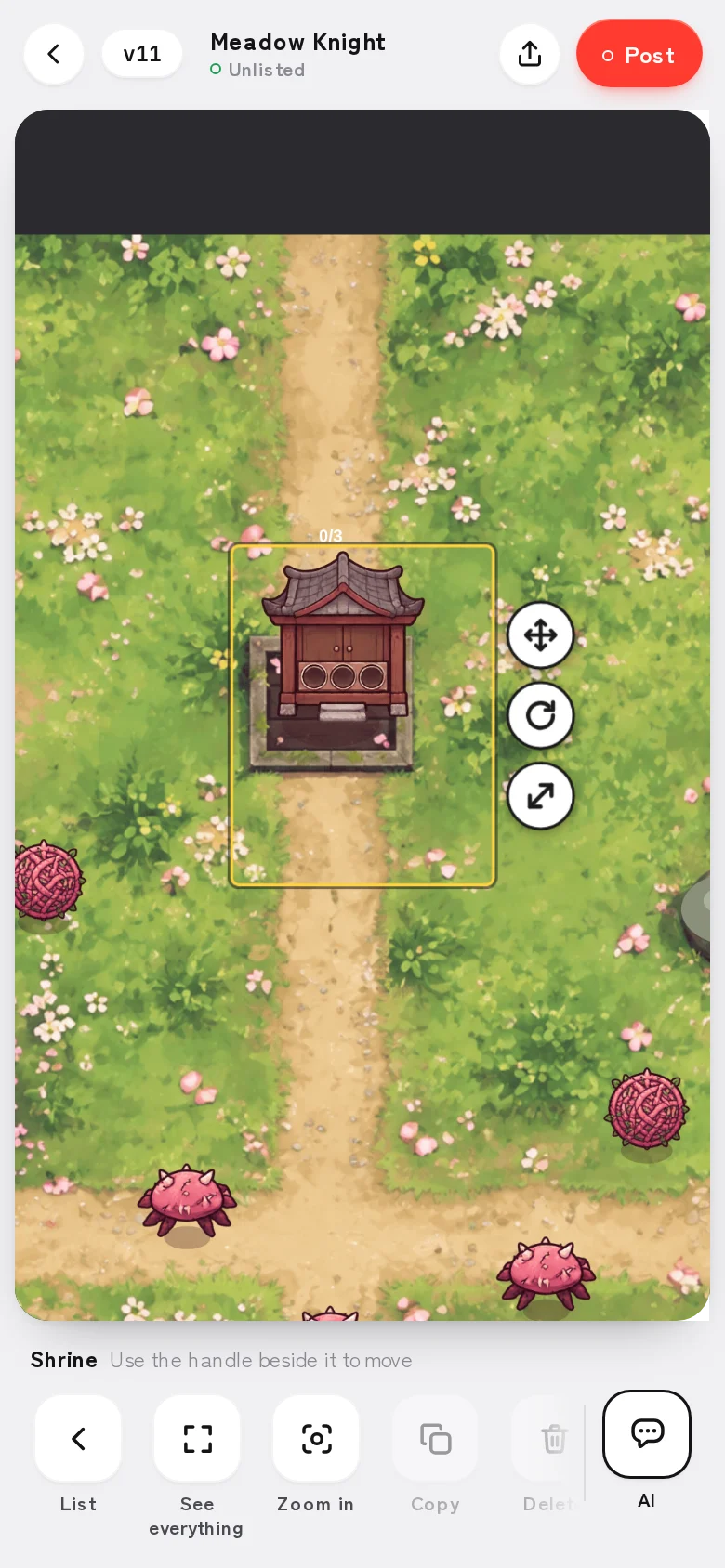
Move it anywhere
Tap what you want to move, then drag the cross button next to it. It works the same way in 2D and 3D games.
- 02
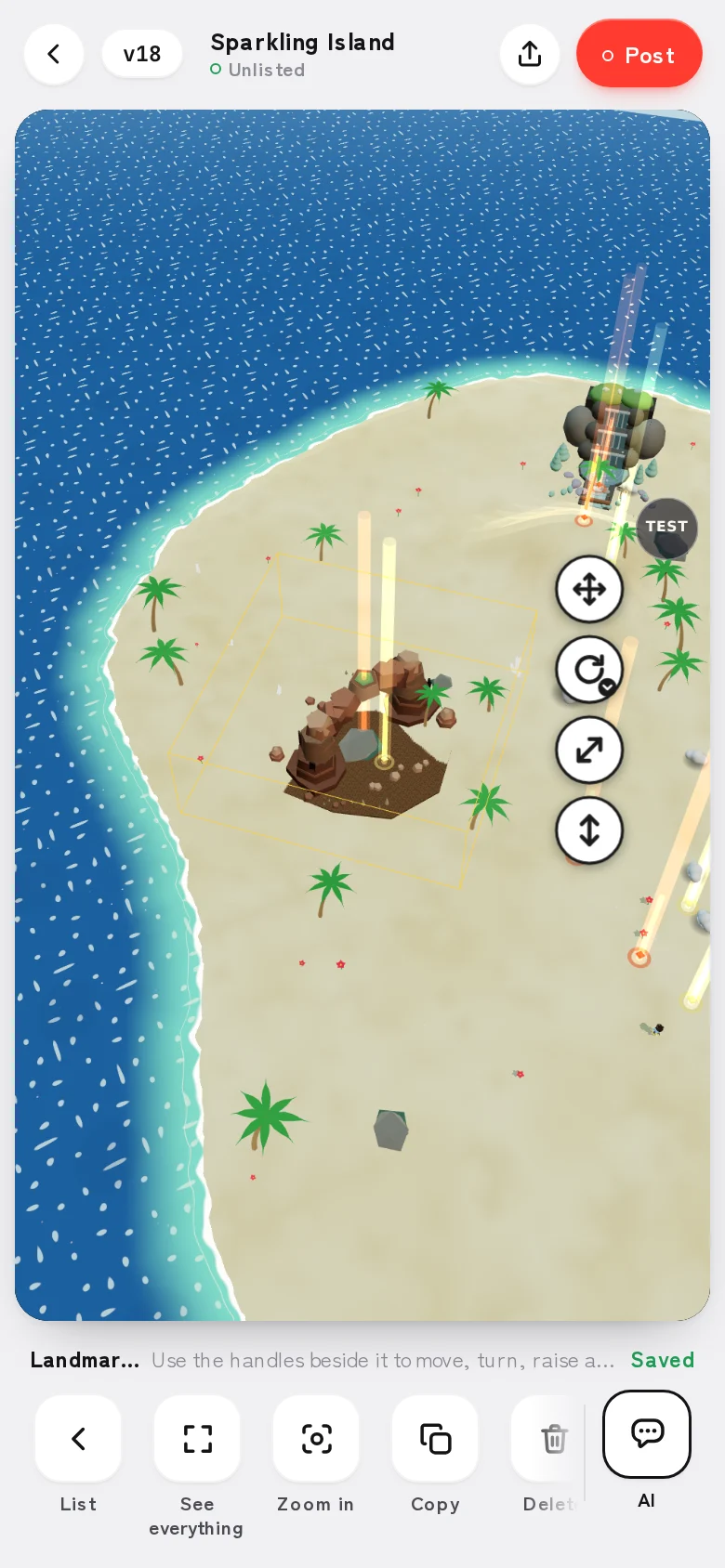
Change the size
Drag the diagonal arrow button outward to make it bigger, inward to make it smaller. It stays standing where it is while only the size changes.
- 03
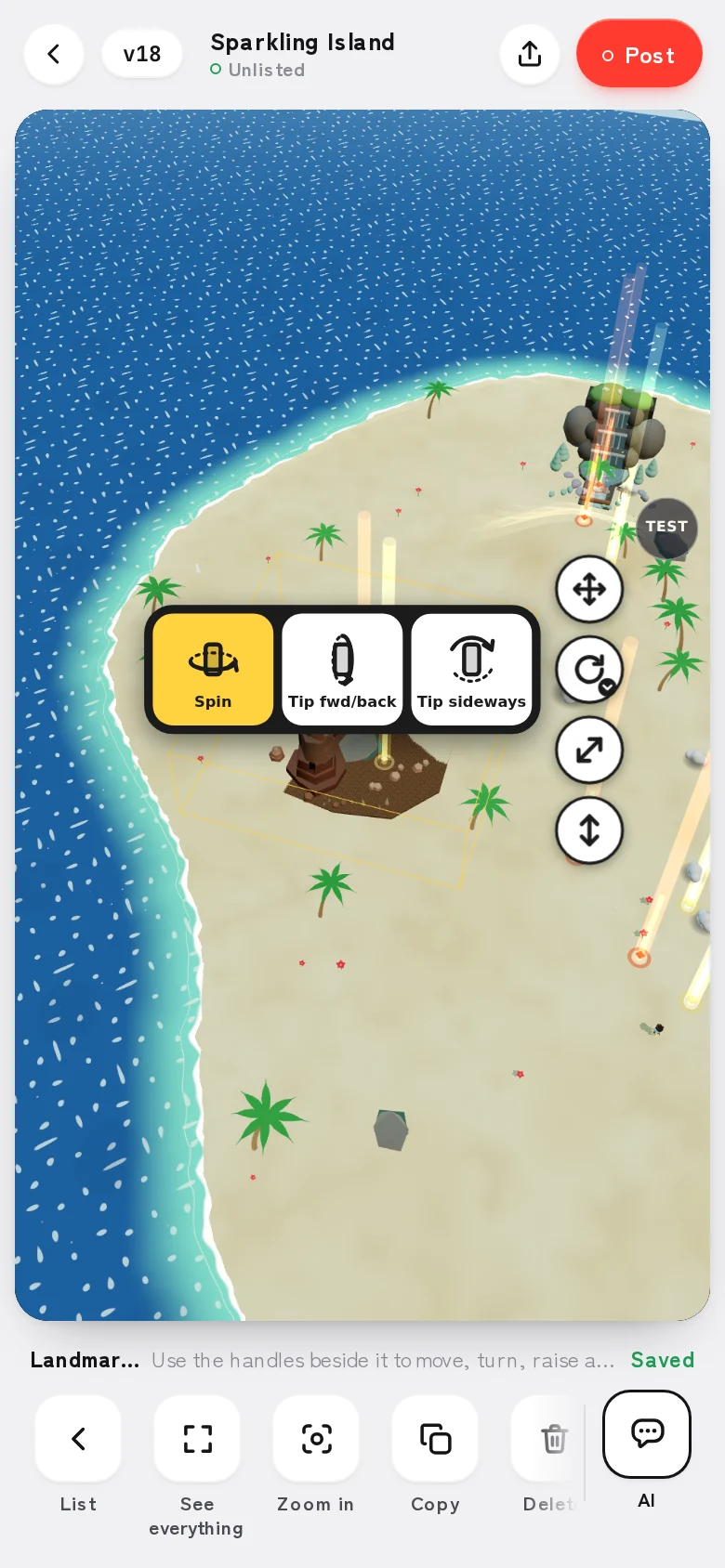
Turn it
Tap the turn button to choose how it turns: Spin, Tip fwd/back or Tip sideways. Now 3D objects can face exactly the way you want (some things, like moving ones, can't be turned).
- 04
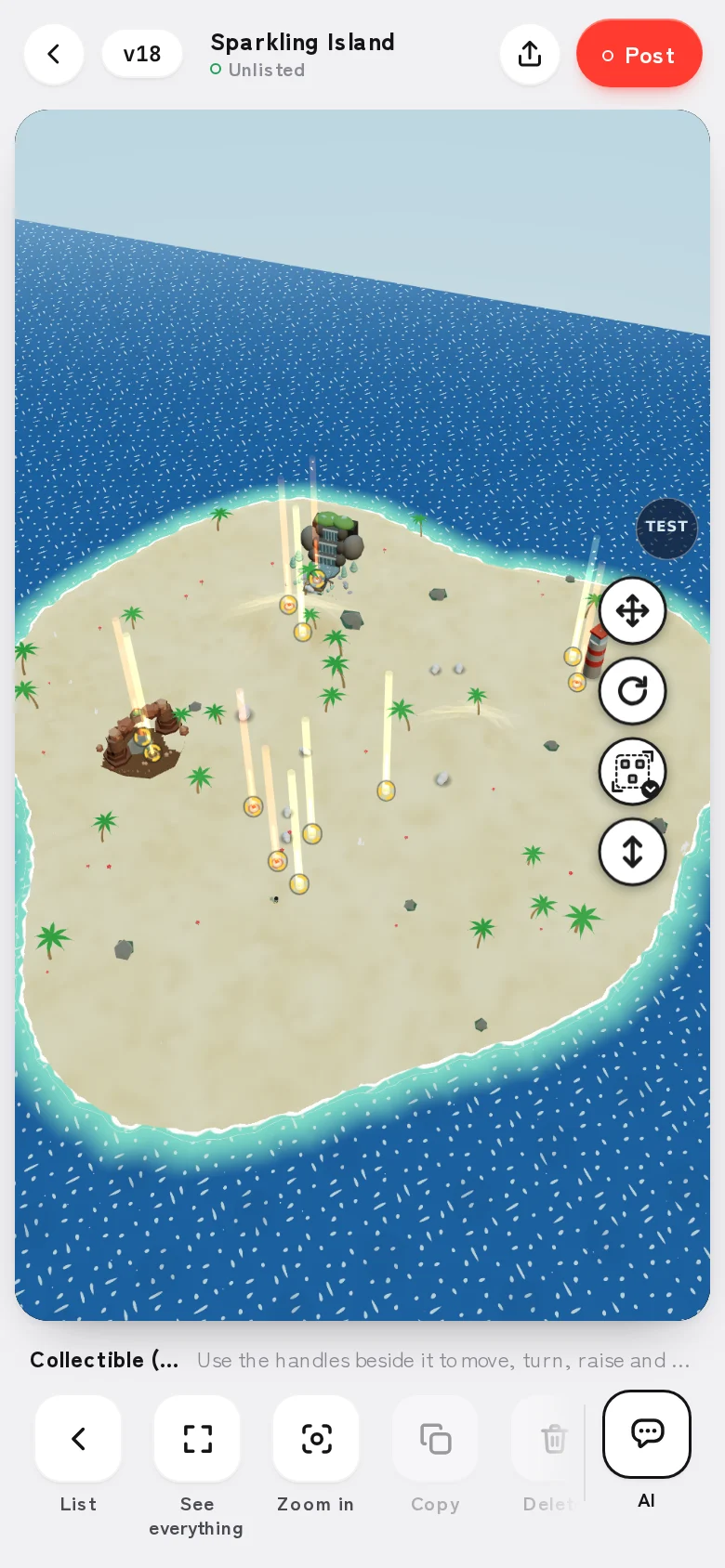
Move a whole group
Select every one of the same thing with All in the list, then move or turn them together.
- 05
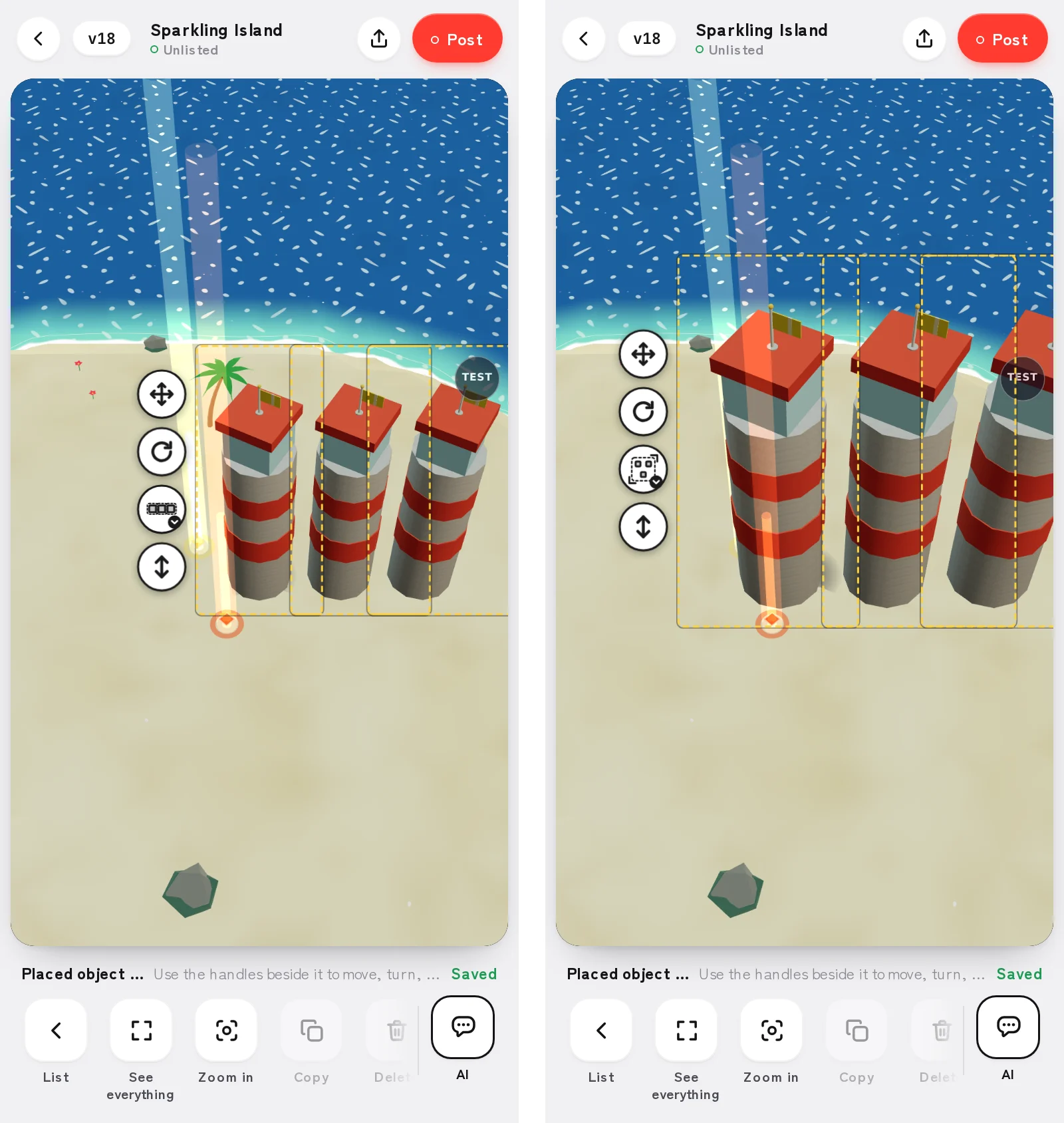
In place or spread out
With a group selected, tap the size button to choose In place (each one grows right where it is) or Spread out (the spacing grows too).
- 06
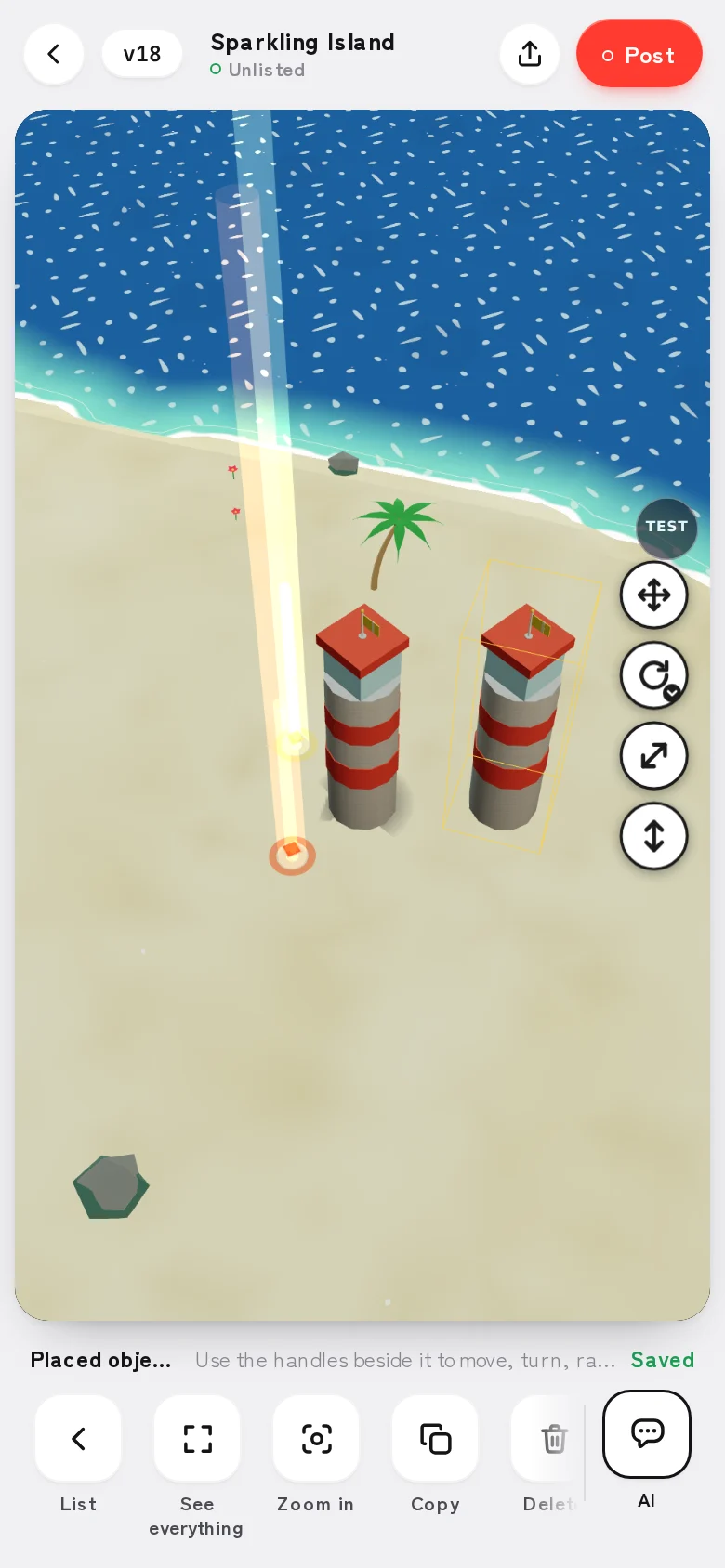
Copy and delete
Copy something to place one more, or delete what you don't need. Undo takes back any step, one at a time.
How to use it
Open Arrange from the tools on the creation screen. It works on phones and computers, and on a computer you can use the keyboard too.